
CloudInsidr

Cyber security, infotech

  • Subscribe!
  • Privacy Policy
  • Legal
  • Contact Us

Join us on Twitter: @CloudInsidr

Follow us on Twitter: @cloudinsidr
  • news & alerts
    • events
    • industry analysis
    • industry gossip
    • people
  • cloud, edge & co.
    • AWS
    • administration & orchestration
      • web servers in the cloud
      • mail servers
      • databases
  • cybersec & warfare
    • encryption
  • blockchain
Home cloud, edge and everything in between administration and orchestration How to install the most recent version of OpenSSL on Windows 10 in 64 Bit
How to install the most recent version of OpenSSL on Windows 10 in 64 Bit

Cloud Insidr 2018-06-02 Leave a Comment

How to install the most recent version of OpenSSL on Windows 10 in 64 Bit

In the age of cyber warfare, being paranoid is the only reasonable attitude and that means, among other things, being paranoid about software updates.

Take for example OpenSSL. This open source cryptography library that implements the Transport Layer Security (TLS) and Secure Sockets Layer (SSL) protocols is designed to “secure communications over computer networks against eavesdropping”, but guess what: it has been riddled with bugs since its inception. This may be unavoidable, to a certain degree — after all, we are speaking about software. Even so, the inherent flaws of OpenSSL should not be an excuse for not keeping the version you use as bullet-proof as possible. Let’s not forget that your car is most likely hackable by a 15 year old and yet you still (presumably) lock the doors.


While you can’t do much about the yet-to-be-identified bugs, you can at least protect your systems from those bugs that have been already patched up and widely documented.

Too bad the official OpenSSL website offers Linux sources only.

While Linux distributions routinely come loaded with OpenSSL, this is not the case for Windows… or shall we say “Windows distributions”. (Didn’t Microsoft want to “Linuxify” its flaggship OS? Never mind.) If you want to run it, you need a Windows binary, and unless you are willing to compile it yourself, you have to to rely on someone else.

Here is how you can set up OpenSSL on Windows without having to deal with the code.

Step 1. Get hold of the binaries

Finding Windows binaries of OpenSSL is not an easy task, but don’t get discouraged. They do exist. To download them, navigate to:

https://slproweb.com/products/Win32OpenSSL.html

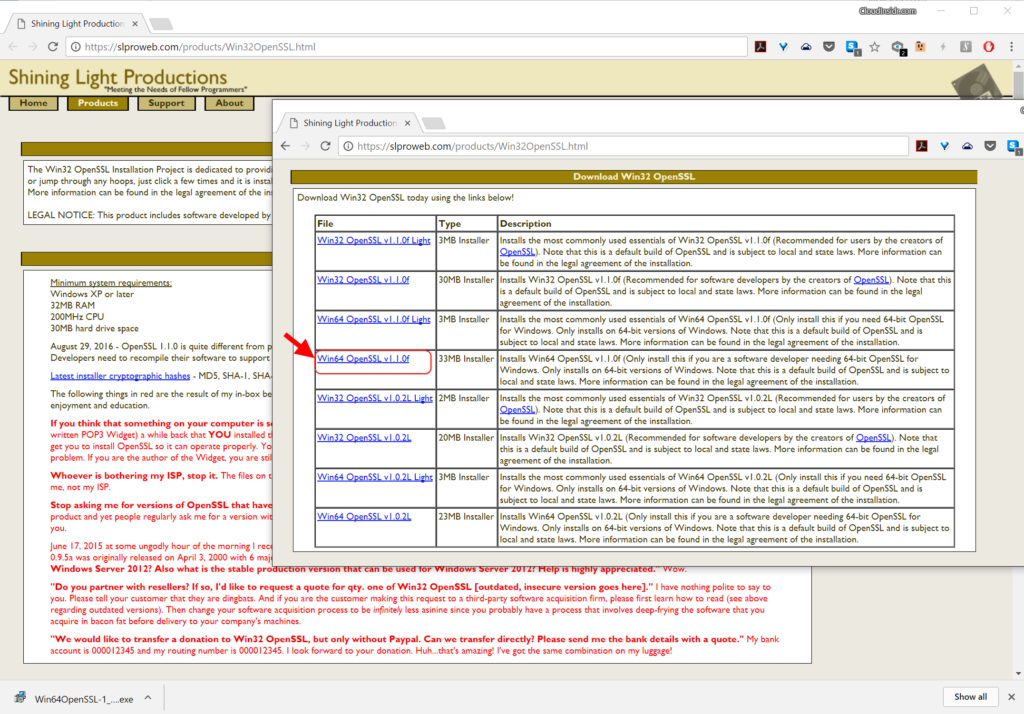
Don’t be fooled by the Win32 string in the URL nor by the navigation pointing you to a seemingly ancient download page from way back in 2004 (from the “Products” tab through the “Win32 OpenSSL link”). Scroll down the page to the section “Download Win32 OpenSSL”, ignoring the confusing string. Now you need to pick the right binary from the list. For each version, there are two basic types: the full installer and the light installer.

Download the one named “Win64 OpenSSL v1.1.0f” (or a higher-numbered version once it becomes available) to get the full installer.
OpenSSL
OpenSSL

The current version as of this writing (OpenSSL 1.1.0h) is very different from previous releases. It is not the same thing at all so pay attention to the release numbers! The worst thing you can do is use an old version that has documented bugs that anyone could exploit following a howto!

Step 2. Run the installer

We recommend installing OpenSSL outside of your Windows system directory.

Step 3. Start the OpenSSL binary

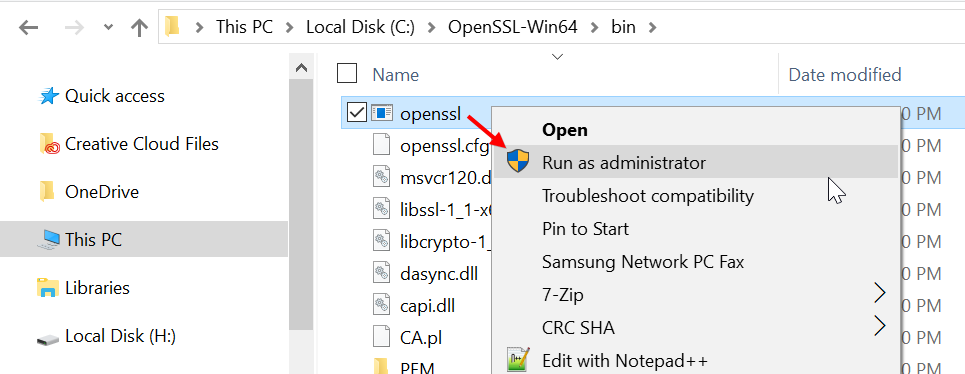
To invoke OpenSSL, you can simply right-click on it in the Windows Explorer at its install location, for example in:

C:\OpenSSL-Win64\bin\

then choose “Run as Administrator”.
OpenSSL
Starting the OpenSSL binary on Windows

It will open a cmd window with the OpenSSL command prompt. Here is what to expect.

Verifying the version of OpenSSL on Windows

Now you are ready to start creating your OpenSSL keys. (Speaking of which: users of the remote access utility PuTTY can export an OpenSSH key from PuTTYgen.) When using OpenSSL on Windows in this way, you simply omit the openssl command you see at the prompt. For example, to generate your key pair using OpenSSL on Windows, you may enter:

openssl req -newkey rsa:2048 -nodes -keyout key.pem -x509 -days 365 -out certificate.pem

and follow the onscreen instructions as usual. To review the certificate:

openssl x509 -text -noout -in certificate.pem

and so forth.

Filed Under: administration and orchestration, cloud, edge and everything in between, cybersecurity and cyber warfare, encryption, web servers in the cloud Tagged With: cyber security, Linux, OpenSSL, Windows

Leave a Reply Cancel reply

Your email address will not be published. Required fields are marked *

Subscribe

SSL/TLS Certificate Square (250 x 250)

Pearson Education (InformIT)

SSL/TLS Certificate Medium Rectangle (300 x 250)

Recent Posts

  • Upgrading from CentOS 6 to CentOS 7 and Beyond?
  • How To Figure Out Who is Signing In To Dovecot to Send or Retrieve Email
  • OpenSSH 9.9 Introduces Enhanced Quantum-Resistant Algorithms
  • OpenSSL 3.3 Final Release is now live!
  • How to Activate HTTP/2 with TLS 1.3 Encryption in NGINX for Secure Connections without a Performance Penalty
  • Is AWS sucking your budget dry? Strip it down to the nitty-gritty (without breaking stuff)
  • How to attach and mount an NVMe EBS volume on EC2
  • SELinux security contexts: correcting SELinux labels on a file system
  • Intel gobbling up Israeli Tower Semiconductor, Stock Goes Through The Roof
  • NGINX on AWS EC2: setting up a web server from scratch on a domain of your choice
  • Log4j RCE and mitigation techniques
  • Set up logrotate for Postfix

Symantec

Categories

  • administration and orchestration
  • alerts
  • AWS
  • Bitcoin
  • cloud, edge and everything in between
  • cryptocurrencies
  • cybersecurity and cyber warfare
  • databases
  • DNS
  • encryption
  • events
  • FinTech and InsurTech
  • homeland security
  • HTTP Security Headers
  • industries
  • industry analysis
  • industry gossip
  • Java
  • Linux
  • mail servers
  • networking
  • news
  • NGINX
  • people
  • php-fpm
  • reviews
  • SELinux
  • tips and tricks
  • Uncategorized
  • web servers in the cloud

Tags

AMI AWS AWS EBS Azure certificate cipher suites cryptography cyber defense cybersecurity cyber security Diffie-Hellman DNS DNS over HTTPS Dovecot EBS EC2 email encryption Fedora HTTP/2 HTTPS IBM letsencrypt Linux logs MariaDB MFA MySQL NGINX OpenSSL permissions php-fpm PHP 7 postfix RegEx Route 53 RSA SELinux SQL SSH SSL TLS TLS 1.3 TLS vulnerabilities WordPress

Archives

  • January 2025
  • November 2024
  • October 2024
  • May 2024
  • January 2023
  • March 2022
  • February 2022
  • December 2021
  • December 2020
  • November 2020
  • September 2020
  • January 2020
  • November 2019
  • August 2019
  • July 2019
  • April 2019
  • December 2018
  • October 2018
  • September 2018
  • August 2018
  • June 2018
  • May 2018
  • April 2018
  • February 2018
  • December 2017
  • November 2017
  • October 2017
  • August 2017
  • April 2017
  • February 2017
  • January 2017
  • November 2016
  • September 2016
  • August 2016
  • July 2016
  • March 2016
  • February 2016
  • January 2016
  • December 2015
  • November 2015
  • October 2015
  • September 2015
  • July 2015
  • February 2015

Recent Comments

    Wicked fast Networking (With a Government Clearance to Boot)

    ©2022 CybrAnalytiqa OÜ

    • Content purchasing and syndication